

Software Impressions
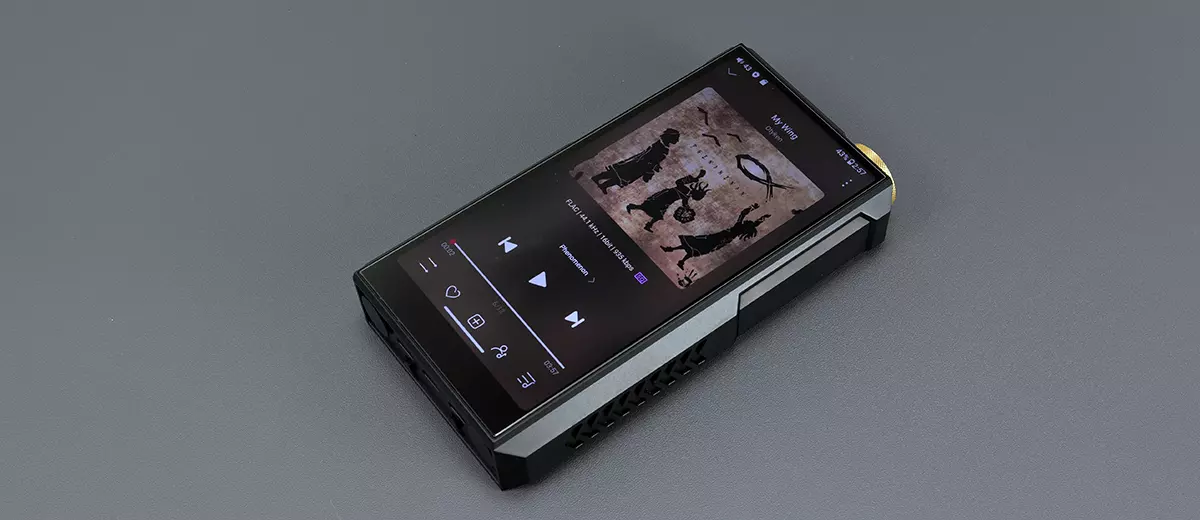
The following software impressions from the FiiO M27 were completed using firmware version 1.0.3. My focus here is primarily on the new features and tweaks introduced since the M17.
Android Platform
The FiiO M27 uses a dated Android 13, which, like the RS8 II, leaves me slightly disappointed, as a flagship experience should perhaps lead the charge for fresher OS platforms such as 14 or even 15.
That being said, in a similar fashion to HiBy’s flagship, FiiO has compensated for the dated OS by turbo-charging the CPU with a Qualcomm QCS6490 SoC and 8GB of RAM, a significant step in processing power and speed over the M17’s Android 10, Snapdragon 660 SoC, and 4GB of RAM configuration.
The M27 uses a global-ready ROM, meaning access to Google’s Play Store and Play Services are active by default. The out-of-the-box experience is relatively bloat-free, without any heavy theming, and quick access to dark mode for those with sensitive eyes.
Aside from the background image, the initial theming impression is quite similar to the M17 home screen, but once you start digging into the options and drop-down menu, that’s when Android 13 makes its presence felt.
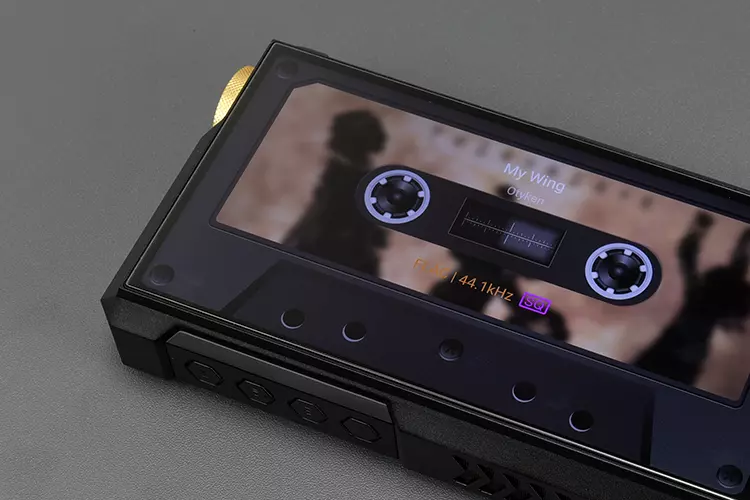
The M27 does come with some additional applications that are not on the M17 when it first launched. This includes Tape Mode ( first seen on the likes of the JM21), a dedicated equalizer for PEQ, and FiiO Roon.
However, subsequent firmware updates to the M17 means it has caught up to the M27 in some ways, but the likes of the dedicated FiiO PEQ app and tape mode are not available.
One thing to note is that the M27’s Roon profile shows up as “R7” in the Roon Core when wirelessly connected, which I suspect will change once the M27 is certified as Roon Ready. Wired showed up as M27.
Performance Benchmarking
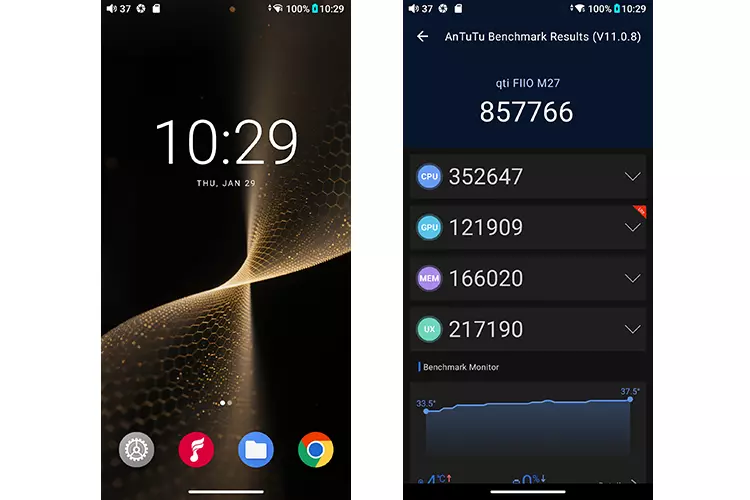
The upgraded SoC, an additional 4GB of RAM, and an improved 2702.2 MHz clock range make a massive difference in the M27’s responsiveness and speed compared to the M17.
It is not even close. The M27 is almost 3.5 times more capable and remained 3 °C cooler during the testing, according to our AnTuTu benchmarking report, with the listed user-submitted reports ranking it just above the Samsung Galaxy S21 Ultra 5G for Android performance in 86th position.
The only DAP I have tested recently that benchmarked significantly faster is the new HiBy RS8 II, which uses a Qualcomm Snapdragon 8 Gen 2 processor (QCS8550) and 16GB of RAM and costs twice as much as the M27.
Navigation
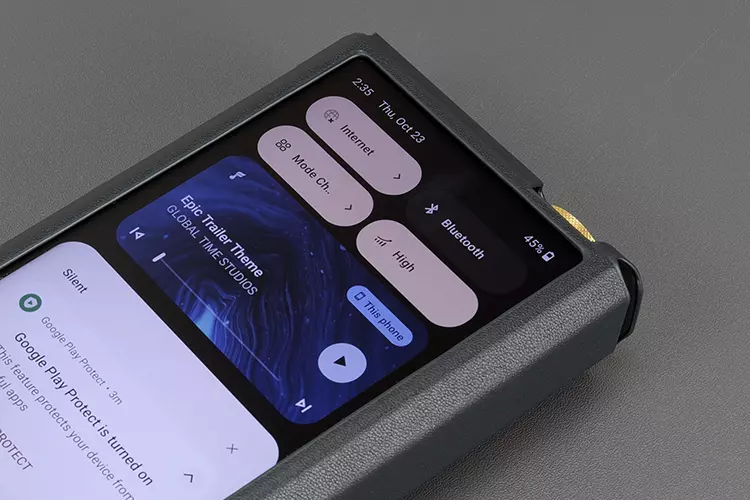
Android 13’s navigation is more refined and modern-looking compared to the M17’s Android 10 version. The UI moves away from smaller icons in a grid to the more legible integrated dual rectangular action boxes you see now on modern-day phones.
New features means new drop-down box options, and a few existing ones endowed with more granular control on the M27.
New options include Cassette Mode and the ability to turn the optical/Coaxial output on or off, and the granular control refinements include 4 upsampling levels in All-to-DSD as opposed to just on/off on the M17.
Those upsampling levels range from DSD64, 128, and 256, each with slightly different sound qualities, which I will get into more detail on page 3 of this review.
Small tweaks also include an active apps counter at the base and moving the power and settings icons closer together on the far right. The clock face at the top of the bar is also bigger than before, making it easier to read.
The M27 comes equipped with gesture-based navigation out of the box, which some prefer. If you’d rather have the 3 icon system at the base of the screen, you can change it to that in the Main Settings, Accessibility section, similar to a smartphone setup.
You can also switch between dark and bright modes, and the OS will apply that throughout the system. Dark mode is turned on by default, which I much prefer for its calming effect on my eyes.
FiiO Equalizer
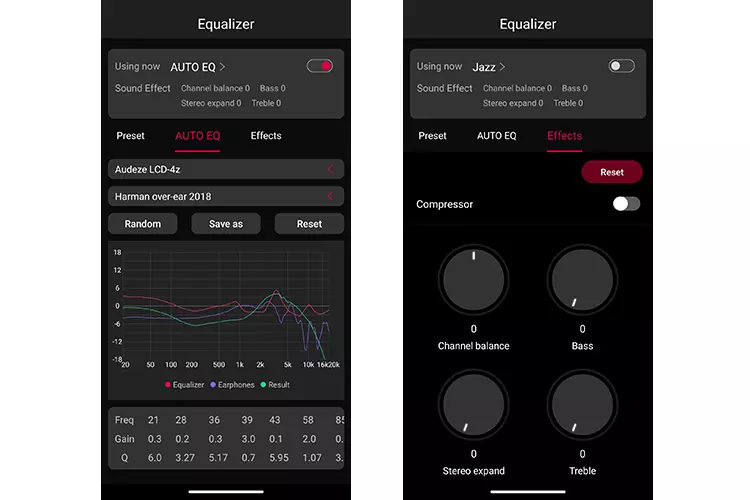
If you are a user of FiiO Control and use AutoEQ or the website PEQ system, you will be pleased to know that FiiO has introduced the FiiO Equalizer app with integrated AutoEQ to the M27.
Despite numerous firmware updates on my older M17, I have yet to see this app on the older flagship, so it was ironic that budget-level DAPs such as the JM21 had it but not their flagship player.
This is an excellent PEQ tool that not only allows you access to generic presets but also to a 32-BAND PEQ system to create manual profiles or select an AutoEQ backed by a large database of headphone measurements and target data curves.
I have no idea how many measured head gear is in there, as the list is endless, but for target Curves, there are currently 11 with popular ones available, such as Harman and Diffuse Field.
Basically, you can lay out the measured curve of your paired gear, line it up against a target curve, and then start making granular Q and Gain adjustments across the frequency bands to suit your listening preferences.
You can enhance the listening experience even more with an expanded Effects Section. You get options for a wide range of tone controls, including a compressor, bass, treble, and a Stereo Expand option. All of which I will outline in more detail in my sound impressions on page 3 of this review.
The main FiiO Music App default setting has a basic Channel Balance setting, but it can be configured to mirror the FiiO Equalizer Effect options via the Lab option in the main settings.
FiiO FX17 fans can even choose a preset designed to enrich the performance of the company’s flagship IEM. I have never tried the FX17, so you will have to chime in on the comments section below to let me know if it works.
Tape Mode
The Tape or Cassette Mode first came out with the JM21 and M21 and was designed to give both devices a retro vibe during playback.
It is purely decorative with no integrated touch-activated functionality other than to show the track data, sample rate, current volume, and battery life. However, you do get up to 15 different theme options, and each will transform your playback interface into a cassette face theme, including Xmas ones.
I can see the appeal of this with the M21’s exterior Walkman case creating the complete look, but it does not have quite the same impact on the bulkier M27 with its more ‘generic’ leather case. Perhaps FiiO can release a Walkman-style case for the M27 in due course to complete the visual.
Audio Settings
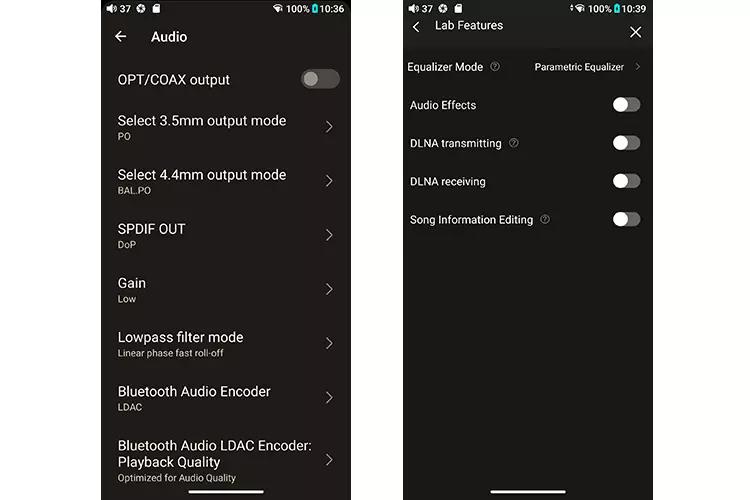
There are a few changes to the Audio settings on the M27 that reflect the additional features added since the M17, but there are a few things that are now missing.
The missing is bi-directional SPDIF support, but in return, you get optical and coaxial output as well as the ability to choose between them, and not just coaxial on or off. The old Max volume setting has moved to the Global setting, which helps simplify the Audio settings menu.
There is also a global equalizer shortcut that takes you right into the FiiO Equalizer app, as well as an auto-pause without headphones feature that will stop playback after 2 minutes if no headphones are connected to the device, thereby saving some battery life.
Because the M27 has a new DAC chipset, the digital filter options have been updated to reflect that. There are still 7 choices, and some are relatively similar in their aims, but the labeling has been simplified and is easier to understand.
System USB output volume is now available, which helps with USB Audio output and control. I am also glad to see the Second Harmonic Regulation feature has been retained, as I found it essential with the M15s when listening to brighter headgear.
Connectivity
WiFi
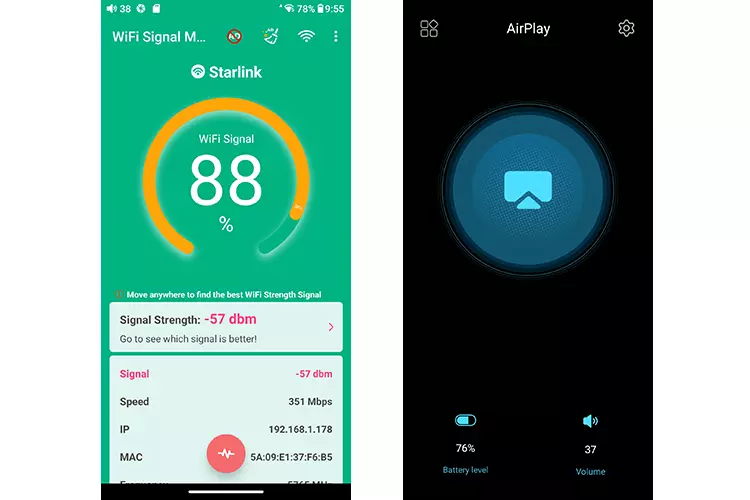
For WiFi testing, I used the WiFi Signal Strength Meter app at 10 meters away from the M27 and the M17, which were sitting side by side.
The test ran for 5 minutes, and though there were some dips and peaks, on average, the M27 has slightly more extension in its broadcasting and about 25 Mbps more registered speed than the M17.
For Mac users, AirPlay works similarly to the M17, though the M27 has a helpful volume bar indicator o the side, which is still not on the M17 with the latest firmware date. Also, bear in mind that if you are using AirPlay 2, you are not guaranteed lossless playback up to 44.1kHz unlike AirPlay 1.
Bluetooth
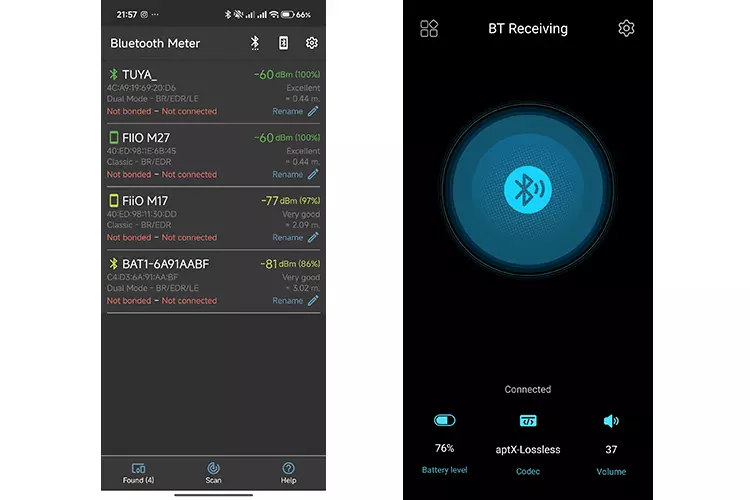
My testing process was with a Xiaomi 15 Ultra using Egeldev’s Bluetooth Meter Tester App (Android) and with the M27 and the M17 side by side. One test was conducted at point-blank range, and the second at 15 meters away.
In both tests, the M27 came out a bit stronger for signal strength than the M17, more so at the long end, or 15 meters away.
For a more subjective test for stability and range, I used the Noble FoKus Rex5 TWS (in LDAC) and walked to the other side of my open office, about 20 meters in total, and behind one small wall. Both the M27 and M17 were able to transmit to the Rx5 without any stuttering or drop-out.
One small point to make for owners of the Huawei Freebuds Pro 4. You cannot get LDAC automatically until you download the AI Life app directly from the Huawei website. It is not available on Google Play.
Once installed, switch to the setting for the best audio quality, and LDAC will be automatically picked by the M27. This is technically a Huawei issue, not a FiiO issue, as it’s a similar situation on my Xiaomi 15 Ultra smartphone.
BT receiving worked a charm with aptX Lossless streamed directly from my Xiaomi 15 Ultra to the M27 automatically. The maximum you can get from the M17 is aptX-Adaptive.
This is my first time hearing aptX Lossless, so I will have more to say about that in my sound impression on page 3 of this review.
USB-DAC
I recently switched to a Mac Studio, so I still have a bit of a learning curve on USB-DAC connectivity via 3rd party software.
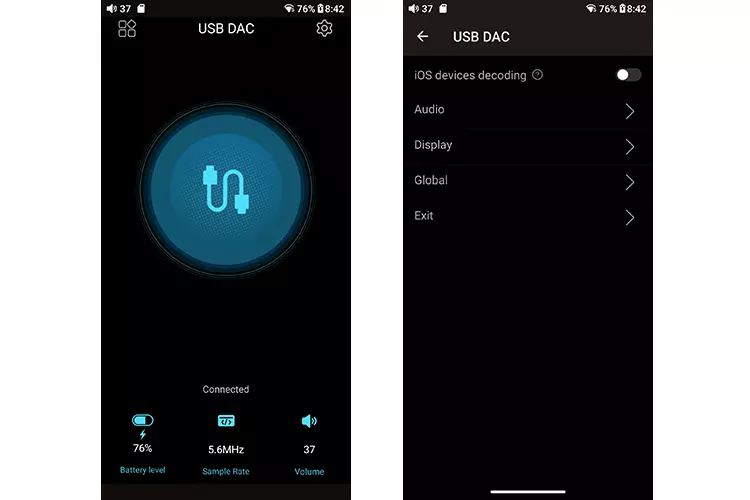
That being said, the M27’s USB-DAC interface looks slicker than the busier M17 design, and it is a relief not to have to worry about downloading and installing drivers to get anything to work.
Like AirPlay, the M17 is also missing the volume slider GUI in USB-DAC mode, which, to be honest, is a must on the M27. Strangely, FiiO has not enabled that on the M17 on the latest firmware.
One thing to note, though I am unable to test it, is the additional iOS device decoding option in the M27’s USB-DAC menu. When switched on, it allows the M27 to complete the handshake protocol with modern iPhones and iPads via USB.
For Roon users, make sure you have Exclusive mode set to on when you are setting up the M27 in the audio section. Without it, you will get the PC or Mac’s maximum sample rate of 44.1kHz regardless of file resolution. Turning it on will enable DSD and high PCM sample rates decoding via USB.
USB-OTG
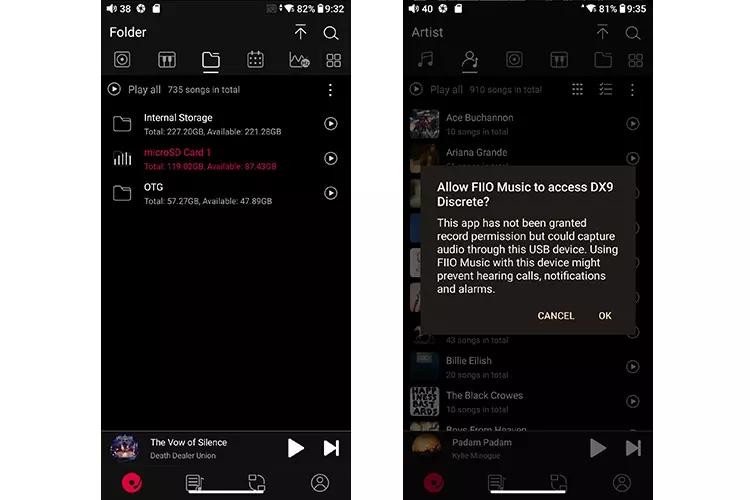
I had zero issues loading a flash drive via the M27’s USB-C host port and connecting the central USB-C data port to either a dongle DAC or an outbound desktop DAC/amp.
Once the flash drive was recognized, I could scan and integrate it into the FiiO Music app and treat it as part of my main library, which is exactly how you want it to work.
USB Digital audio output works as expected. I was able to connect a Cayin RU9 without issue, as well as a Topping DX9 Discrete DAC/Amp (using a USB-B to USB-C adaptor).
There is less value in using a dongle DAC given how good the M27 is performance-wise, but for those who want an authentic tube tone, there might be some value in using an RU9 or an iBasso D17 Atheris in the chain.
