

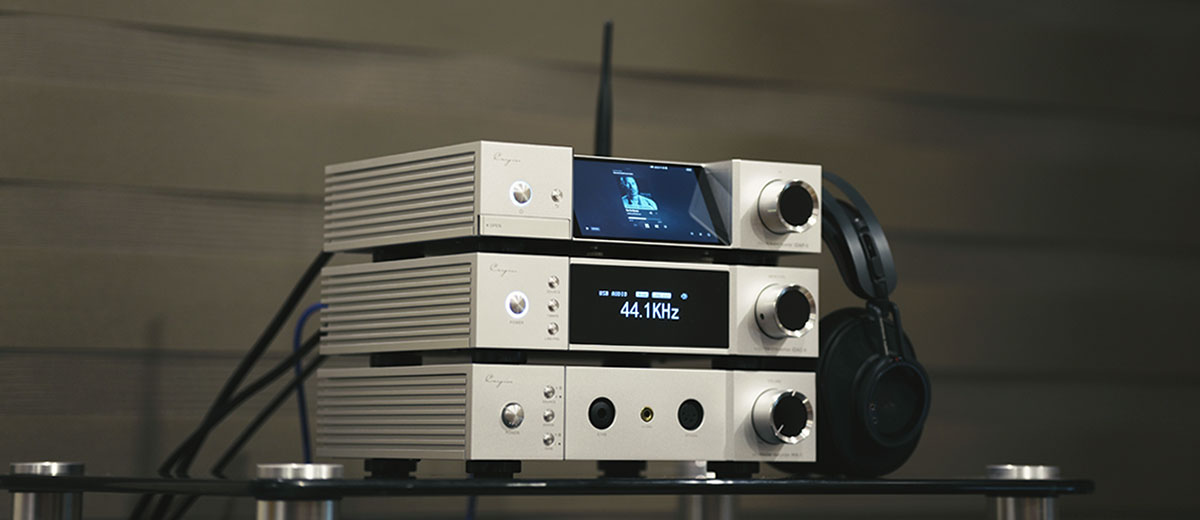
Software Impressions
The following software impressions of the iDAP-8 were completed using firmware version 1.60.
Platform
The Cayin iDAP-8 touch-based operating system is based on a bitperfect open Android 9 platform, powered by a Snapdragon 660 SoC and 6GB of RAM.
For DAP users, Android 9 is an old platform, with Google ceasing security support in 2022. Given that it is an open OS, I would advise avoiding downloading non-Google-verified apps if some of your current apps require usernames and passwords.
As a desktop streamer, most apps are compatible, or at least the ones I normally use, such as Tidal, Spotify, and Qobuz. With 6 GB of RAM, I would not be too concerned at this stage whether or not the iDAP-8 works smoothly with buffer-heavy audio-centric or media management apps.
Cayin has helpfully added a streaming section into its UI flow where you can directly access all your apps with pre-loaded Google Play and an additional list of app essentials, such as a skinned HiBy Music, Tidal, and Qobuz, to help quickly set up the iDAP-8 out of the box.
You will still need to register with Google to access those apps, but it works the same way as an Android Phone or DAP, so it’s a familiar process.
Navigation
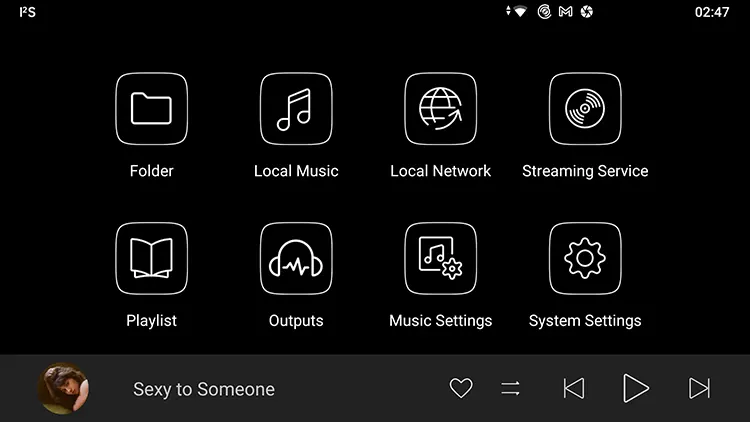
The iDAP-8 uses a heavily skinned version of Android, keeping the icons big and the options on the landscape-oriented screen simple and to the point. Unless you dig deep behind the main theme, you are unlikely to see any traditional Android app icons.
You will only see a classic Android design once you start accessing the iDAP-8’s main settings menu and drop-down bar, and thankfully, Cayin has ensured that it stays in a dark mode.
Apps that you download will not be available on the home screen, as these are reserved for system apps and menu options.
Instead, all downloaded apps are filed in alphabetical order under Streaming Service, even if the app’s purpose is not exclusively for streaming, for example, Facebook.
Cayin has chosen to disable the classic Android 3-button bottom navigation option to maximize screen real estate space, so you can only work your way through the iDAP-8 features via gesture navigation.
It largely works, though with an angled landscape orientation, I sometimes find myself accidentally minimizing apps when scrolling media libraries, so ensure your finger is not too close to the bottom of the screen.
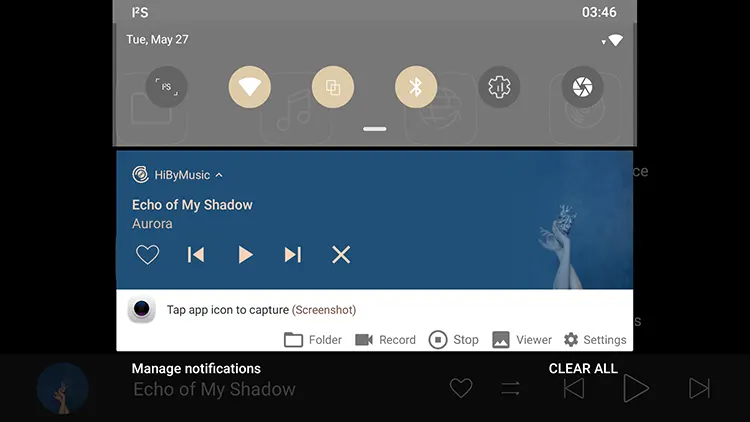
The drop-down menu is classic Android. It has several feature-relevant shortcuts that are customizable with further expansion to show active apps and any playback controls.
The top notifications bar operates exactly as you might expect, with app notification alerts, with Cayin adding a useful current digital output mode indicator in the top-left section.
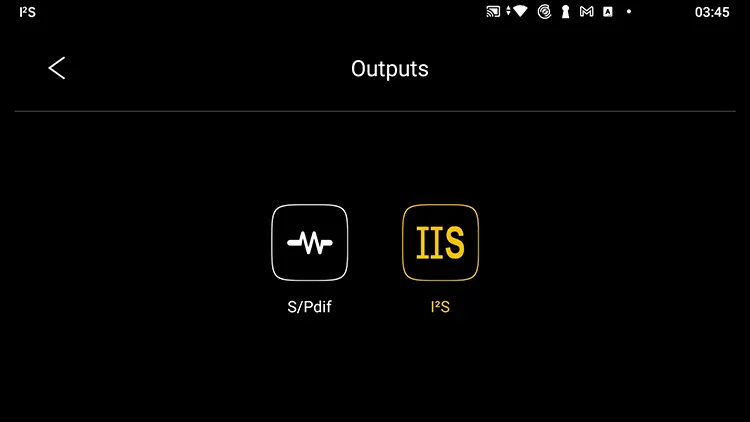
You can change the output mode via the Outputs section, a simple 2-icon picker for I²S or S/PDIF. USB output mode will default to S/PDIF, so this option covers more than just coaxial and optical. You cannot run USB under the I²S mode.

Performance Benchmarking
The iDAP-8 AnTuTu score using 3D Benchmark Lite was surprisingly competitive for an Android 9 platform on a 660 SoC and on par with some of the latest DAPs using a higher Android version.
The 6GB of RAM certainly helps with buffering, which is where a streamer will be solidly tested. For general software navigation and 3rd party app booting, the subjective perception of speed is very good.
Media artwork generation did not seem overly slow to generate on longer lists, whether it was via local storage or on an OTG flash disk.
Although not ideal for your eyes, if you did want to watch general media such as YouTube on the 5″ screen, the iDAP-8 loaded most of my video files just fine without any stuttering.
Features
HiByMusic
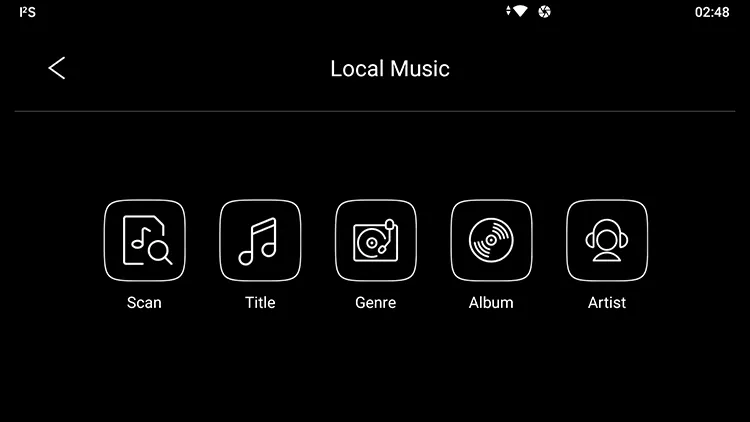
Despite the multitude of options on the home screen, technically, a lot of them belong to the HiByMusic app service, which is system-integrated and split into specific areas.
The Local Music and Playlist section is a minimalist-designed version of HiByMusic’s media management feature, the local network is HiByMusic’s connectivity section.
It’s a clean and efficient player. If you have used HiByMusic before, most of the navigation flow and features are very similar, if not identical in parts. You have to get used to using it in landscape mode, which can limit the above-the-fold screen real estate, meaning long media lists will require more scrolling.
All the HiByMusic settings can be found in the separate Music Settings home screen icon, and one thing I suggest you do not do is turn the “Exclusive HQ USB audio access” option on.
This option is for a digital signal output that bypasses the Android USB driver and is handled directly by the attached device, for example, a dongle attached to a phone. However, in the case of the iDAP-8, it diminished the loudness level and dynamic range significantly when turned on.
Local Network
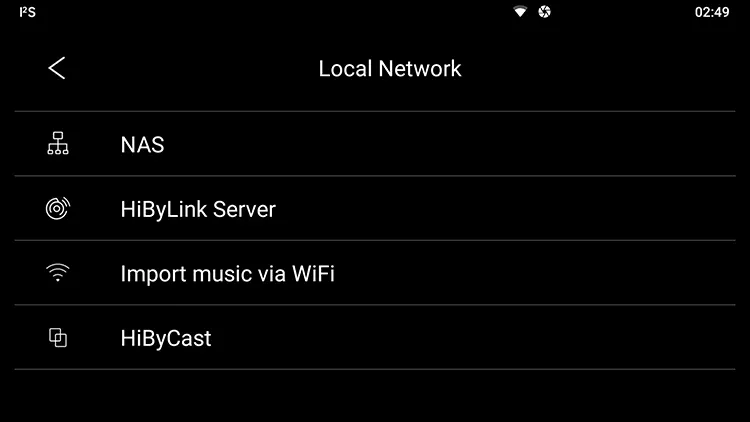
As with the media management, the pre-loaded local network services are pulled from HiByMusic’s core feature set. That includes linking with an existing LAN, transferring files from a smartphone or PC, and built-in HiByLink and HiBy Cast options.
The last two, HiByLink and HiByCast, are more or less your default remote control options for the iDAP-8.
I can only describe them as ok but not ideal or as comprehensive as something like the dCS Mosaic app, but superior in features and easier to learn than Chord’s GoFigure app.
HiByCast gives you the broadest set of controls as it mirrors the iDAP-8 screen, but it’s not that fast and a little awkward via a smartphone as it switches everything to landscape to match the unit’s screen.
HiByLink is more responsive but limited to media management and playback within the HiByMusic environment.
Overall, neither option fully compensates for an old-fashioned physical remote like the one included with the FiiO S15 or a dedicated app like Eversolo’s Control.
Wireless Performance
WiFi
The iDAP-8 had no issues finding and connecting to the network via WiFi with Android 9.
One criticism I had with the iDAP-6 WiFi network pairing using HiByOS was the inability to work with hidden networks. With Android, you can now manually enter the network name and security credentials on the iDAP-8 to connect without an issue.
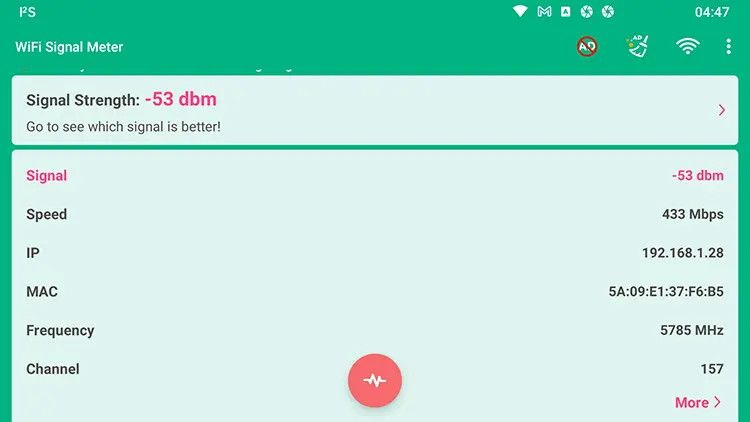
Using the WiFi Signal Meter app and a Starlink modem about 10 meters away in an open office environment, I received a near full-strength signal at -52 dbm in 5 GHz, a number that was mirrored by my Samsung S23 Ultra at the same location.
The only difference between them was the indicated speed, with the iDAP-8 a little lower at 433 Mbps and the S23 at 526 Mbps, which might indicate a modem channel limitation more than the iDAP-8’s wireless capability.
That’s still plenty of bandwidth for hi-res audio streaming unless your modem is bottlenecking the network traffic.
Bluetooth
A better antenna means a better performance. The iDAP-8’s BT signal was far superior to the smaller iDAP-6 antenna’s strength.
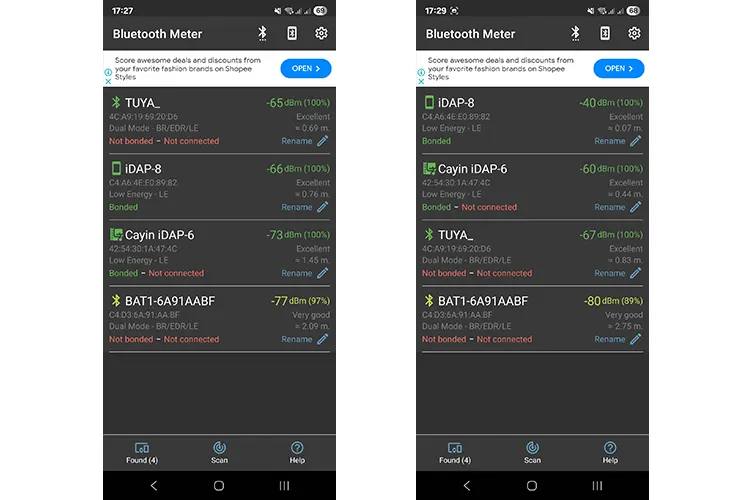
I measured both units from about 20 meters away and beside them using a Samsung S23 Ultra and the Egldev Bluetooth Meter app. At 20 meters away, the iDAP-8’s signal was stronger, with the performance gap becoming noticeably larger the closer I got to their location.
Both chipsets were being picked up as LE models, a version mainly used by the iDAP-8 for its HiByCast/Link remote control system.
Given that the iDAP-8 uses BT 5.0 and the iDAP-6 is just BT 4.1, I have to presume a newer Qualcomm BT chipset is inside the iDAP-8 despite no official listing on the Cayin website.
Click on page 3 below to read my audio performance impressions and comparisons.
